Locations
Last updated: July 14, 2026
If your business operates in more than one place — multiple stores, regions, franchises, or markets — Locations lets you register each one so research and insights can be organized by where they happen. It’s what turns “how do customers feel?” into “how do customers feel at each location, and where are the gaps?”
Why it’s useful
Once locations are set up, you can target a project at a specific place, filter Insights by location to compare performance, and spot where experience is strong or slipping. For multi-location businesses, this is how Gather turns scattered feedback into a like-for-like comparison you can act on.
Setting up a location
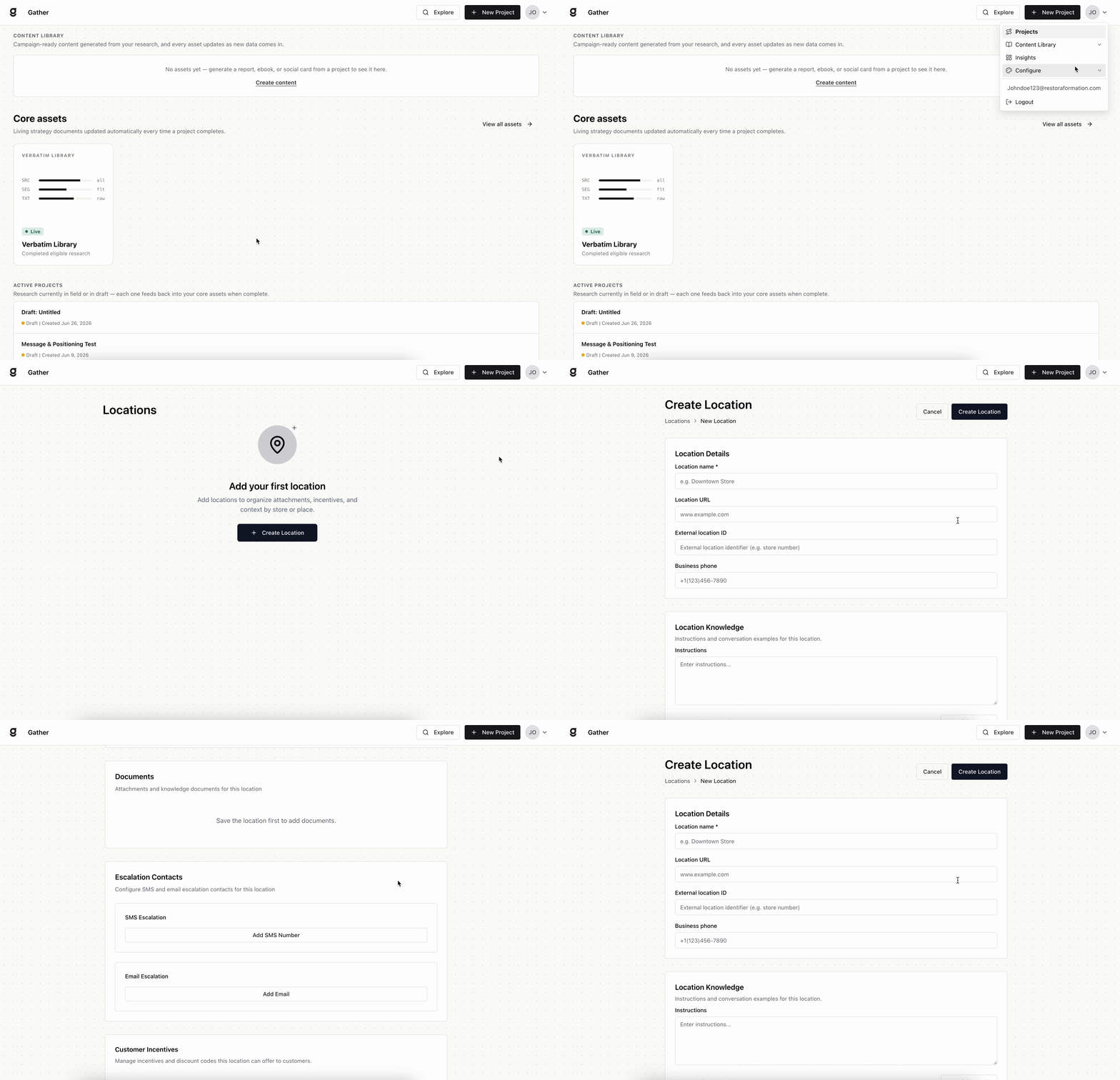
Open Configure › Locations and click Create Location. Only the location name is required — everything else sharpens how Gather handles research and conversations for that site, so fill in whatever’s relevant and save your changes when you’re done.
Location Details
Location name (required) — how this site is labeled everywhere else: across projects, Insights, and reporting.
Location URL — the web page for this specific site, so Gather can ground itself in the right local details.
External location ID — your own reference code for the site (for example, the ID it carries in your store or POS system), which keeps Gather’s locations lined up with the records you already keep.
Business phone — the contact number for this location.
Location Knowledge
This is what makes conversations location-aware instead of generic — the more you add, the more the AI sounds like it actually knows this site.
Instructions — guidance the AI should follow for this location, such as local hours, policies, or points to emphasize or avoid.
Conversation Examples — sample exchanges that show the AI how to respond with the right tone and detail for this site.
Documents
Attach reference material specific to this site — menus, price lists, local FAQs — so answers stay accurate. You add these after you save the location for the first time.
Escalation Contacts
Add the SMS numbers and email contacts who should be notified when a conversation at this location needs a human — a complaint, a sensitive issue, or a flagged response — so nothing important slips through while your research runs.
Customer Incentives
Manage the discount codes and incentives this location can offer customers during a conversation, such as a thank-you or completion reward. Like documents, you add these once the location is saved.