Login & Account Setup
Last updated: June 11, 2026
This guide walks you through signing in to your Gather account or creating a new one.
Signing in
Go to your Gather login page. You have two options:
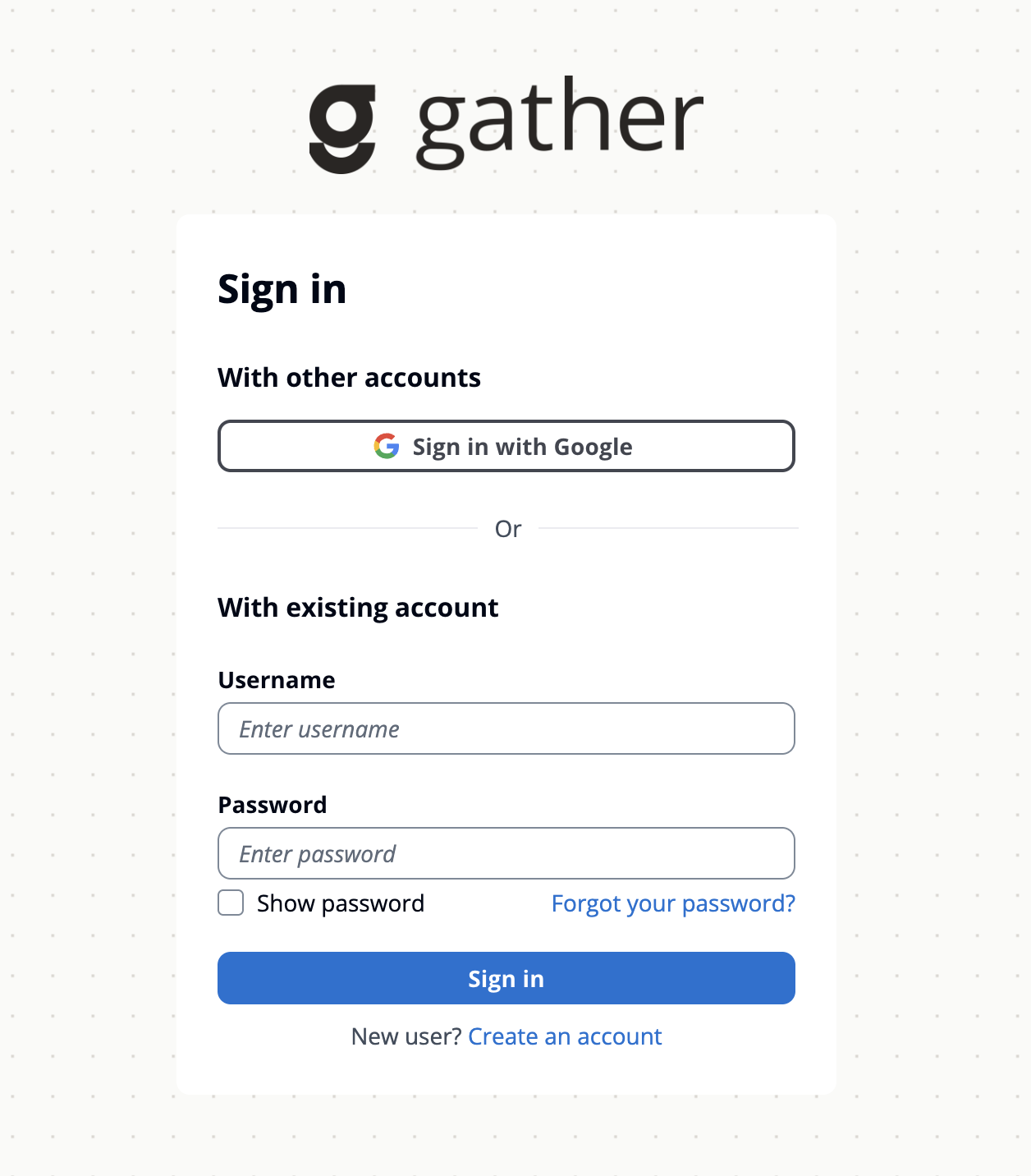
Sign in with Google
Click Sign in with Google to use your Google account. This is the fastest way to get started if your organization uses Google Workspace.
Sign in with username and password
If you have an existing account:
Enter your Username
Enter your Password
Click Sign in
Forgot your password? Click Forgot your password? to reset it via email.
Creating a new account
If you're new to Gather, click Create an account on the sign-in page.
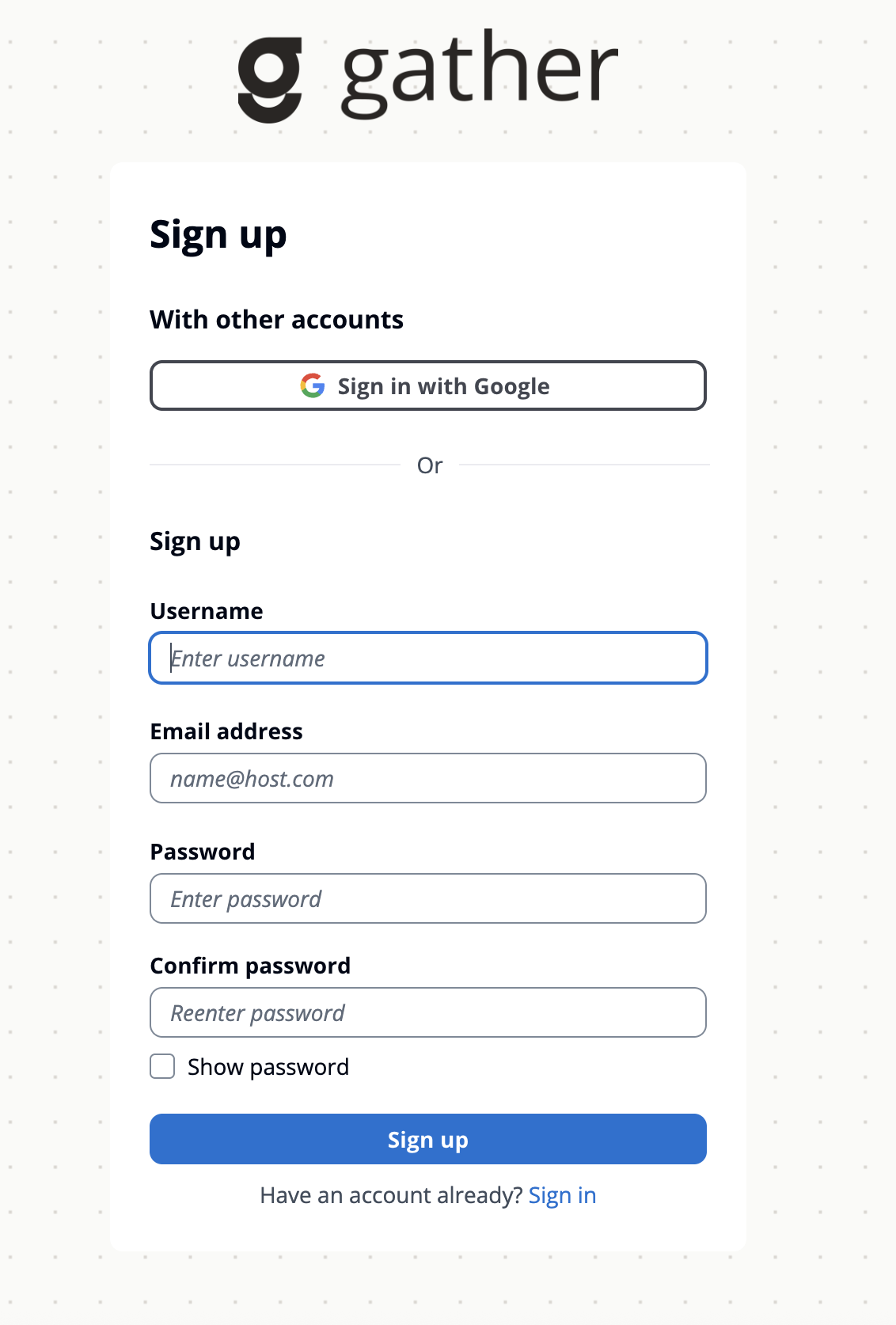
Sign up with Google
Click Sign in with Google to create your account using your Google credentials.
Sign up with email
Fill in the following fields:
Username — choose a unique username
Email address — your work email
Password — must be at least 12 characters and include a number
Confirm password — re-enter your password
Click Sign up when you're ready.
Confirming your account
After signing up, you'll receive a verification code via email. Enter the code on the confirmation screen and click Confirm account.
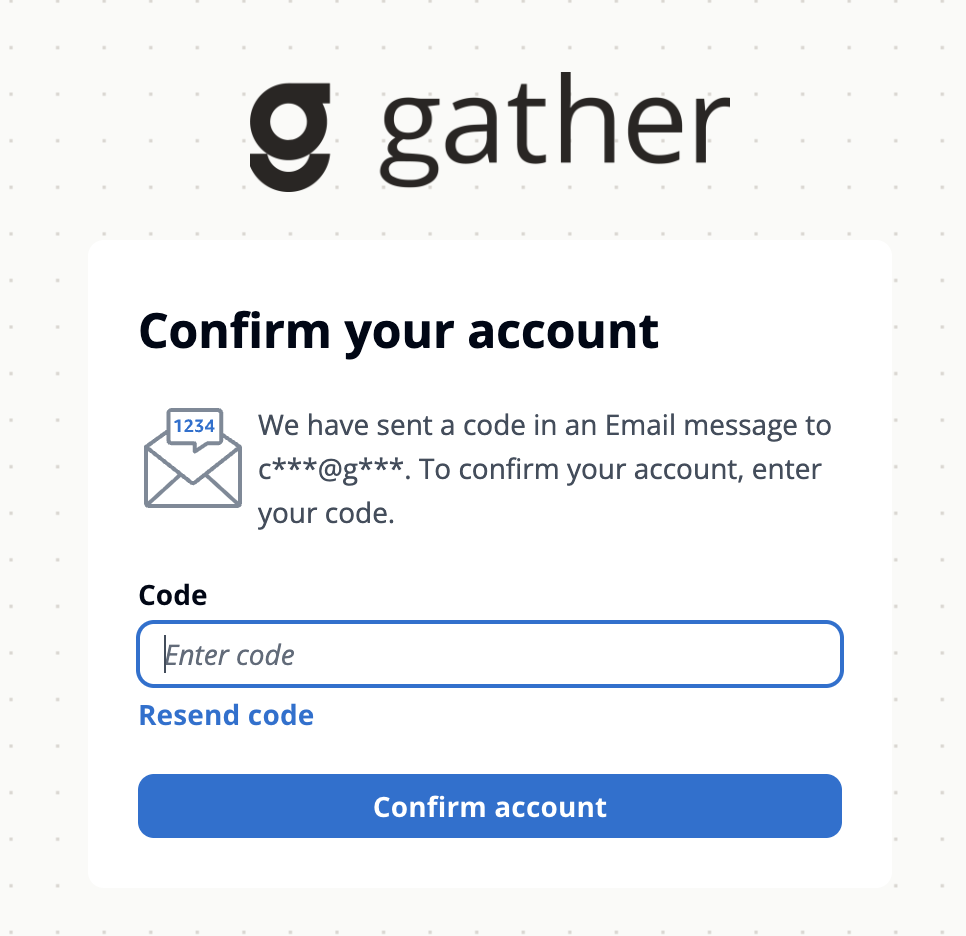
Tip: Didn't receive the code? Check your spam folder, or click Resend code to get a new one.
Once confirmed, Gather checks whether a brand already exists for your email domain. If one does, you're taken straight to your dashboard. If not, you'll be asked to tell us about your business first.
Setting up your business

If no brand exists for your email domain yet, the Tell us about your business screen appears so Gather can create one. Fill in:
Business name — how your company is known.
Website URL — your main site (for example, example.com); Gather uses it to learn about your business.
Email domain — the domain your team's emails use (for example, company.com), so teammates who sign up later are linked to this same brand automatically.
Click Continue to Your First Project to create your brand and jump into building.
You can refine any of these details later in My Brand under Configure.