Navigating the Dashboard
Last updated: July 15, 2026
Everything in Gather is reachable from the top bar and your home dashboard. Here’s how it’s laid out.
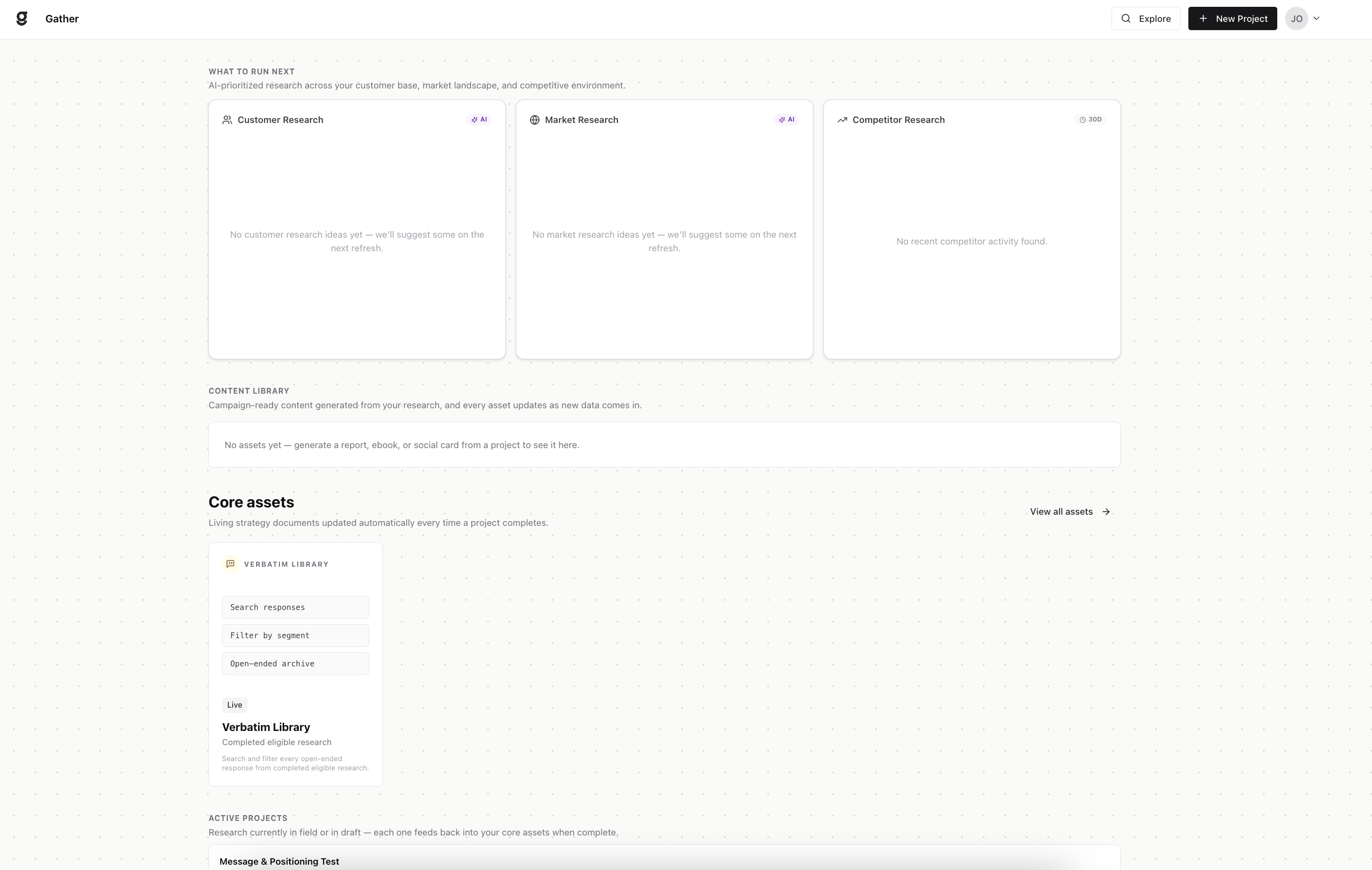
The top bar
Explore — chat with an AI analyst across all of your interviews, asking follow-up questions in plain language. See the Explore article.
New Project — start a new study, either from scratch or from one of Gather’s recommendations.
Account menu (top right) — your hub for everything else: Projects, Content Library, Insights, Configure, and log out.
Your home dashboard
When you sign in you land on your dashboard, which pulls together what’s happening and what to do next:
What to run next — Gather’s recommended studies, grouped into Customer, Market, and Competitor lanes, so you always have a prioritized next move. See the What to Run Next article.
Active projects — everything currently in draft or in the field, with its status, so you can pick up where you left off.
Synthetic Personas — talkable archetypes built from your completed research; open one to ask it a question. These appear once you’ve collected enough data.
Quick views into your Content Library and Core assets, so your most recent assets are a click away.
Where everything lives
From the account menu you can jump straight to each main area:
Projects — your home dashboard of recommendations and active projects.
Content Library — campaign-ready assets generated from your research — reports, slide decks, social cards, blog & AEO, and ebooks — plus Core assets like the Verbatim Library that stay current as new research completes.
Insights — performance dashboards that roll findings up across all of your projects.
Configure — the context Gather runs on: My Brand (who you are, your voice, and your visual identity) and Locations.