Test
Last updated: July 9, 2026
Before you go live, the Test step lets you brand the conversation and preview exactly what respondents will see. It’s your last check that the interview feels trustworthy and flows naturally so you catch and fix problems here, before they cost you real responses.
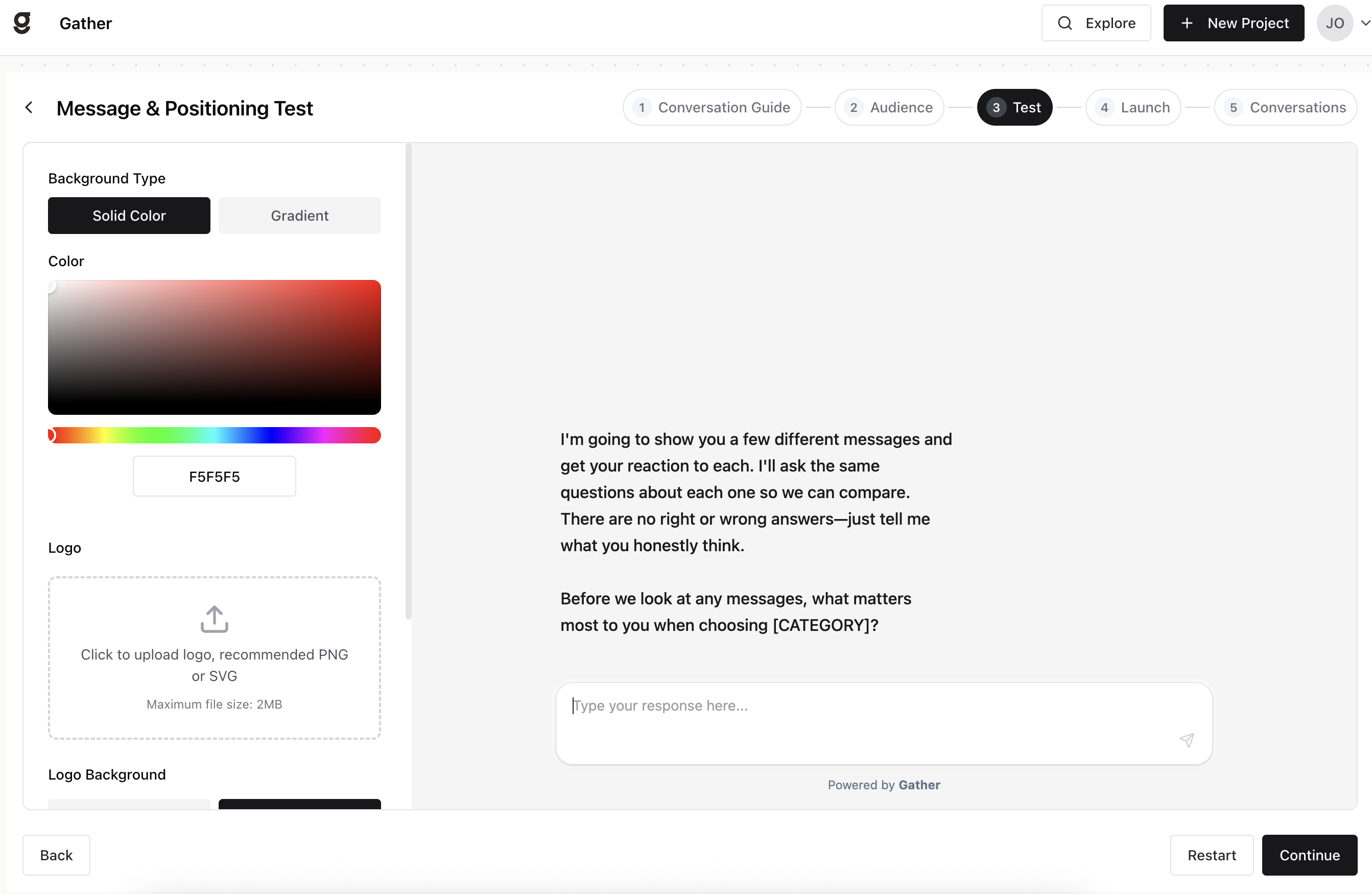
Branding
Branding makes the conversation feel like a natural extension of your company. When you’re talking to your own customers, that familiarity builds trust and tends to lift completion rates.
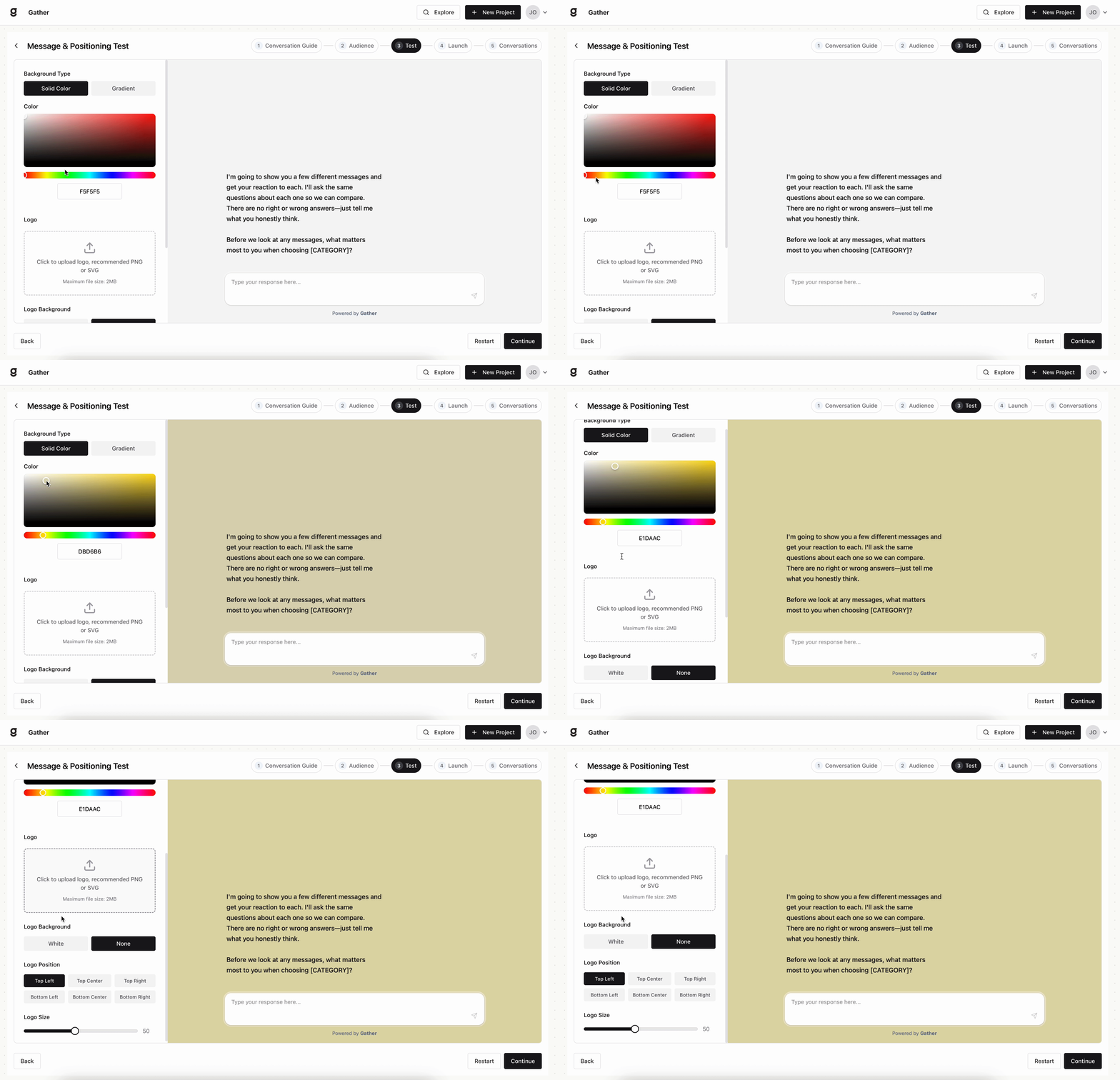
When to keep it plain: branding is optional. For market research with an outside audience, you’ll often want to leave it off — a plain, unbranded experience keeps the study blind, so respondents react to your idea, product, or messaging on its own merits instead of being swayed by knowing which brand is behind it. That makes the feedback less biased and more honest.
Background Type — choose a Solid Color or a Gradient.
Color — pick your background color with the color picker, or enter a hex value.
Logo — upload your logo as a PNG or SVG (max 2MB).
Logo Background — set the backdrop shown behind your logo.
Preview
The right-hand panel shows a live preview of your webchat. Previewing lets you experience the interview exactly as a respondent will, so you can catch a confusing question or an unnatural flow before it goes out and skews your results. Type a response to see how the AI replies, use Restart to clear and test again, and click Continue when it feels right.